
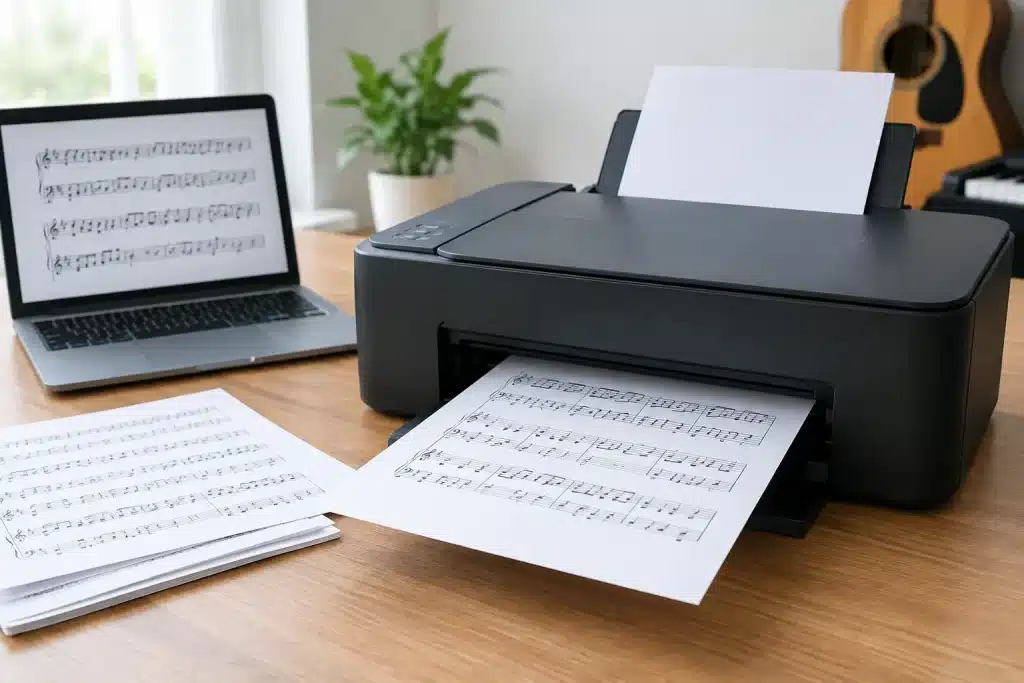
A song can go from “I want to learn that” to the first notes on your piano stand in a few minutes. Once you have purchased a licensed arrangement, knowing how to print digital sheet music properly makes that quick access genuinely useful. A clear, well-organized printout is easier to read, easier to mark, and far less likely to interrupt a good practice session.
Printing music is simple, but a few choices matter more than they do with ordinary documents. Tiny notes, page turns, margins, and printer scaling can all affect whether a score feels comfortable or frustrating to play from. Here is how to get a dependable copy for piano, voice, guitar, or any arrangement you are working on.
Start with the right digital arrangement
Before you press Print, make sure the arrangement fits how you plan to play. A piano solo, an easy piano version, a lead sheet, and a guitar tab for the same song can have very different page layouts and difficulty levels. Choosing the right format first prevents wasted paper and gives you music that supports your current skills.
After purchase, open the score through the authorized viewer or download option provided with your music. Many licensed digital sheet music purchases include personal viewing and printing rights, but those rights can vary by publisher and title. Check the purchase details before printing extra copies, sharing files, or making copies for a group.
FreshSheetMusic is built around individual, licensed songs, so you can select a specific arrangement instead of buying a whole collection for one piece. That makes it especially useful when you need a song for a lesson, a performance, or tonight’s practice plan.
How to print digital sheet music clearly
Open the music at its full page view before selecting the print command. Printing from a browser preview, a phone screenshot, or a zoomed-in display can produce unexpected results. When possible, use a laptop or desktop computer connected directly to your printer. You will have more control over paper size, scale, orientation, and page order.
In the print window, confirm that the selected printer is the one loaded with paper. Then look for the page preview. This is your best chance to spot cut-off staves, oversized margins, or a layout that has changed from portrait to landscape.
For most piano and vocal scores, use portrait orientation. Guitar charts, chord sheets, and some wide arrangements may work better in landscape. Do not switch orientation just because it makes the notes look larger. The key question is whether every staff, lyric line, chord symbol, and page number remains visible and easy to follow.
Set the paper size to US Letter if you are printing at home in the United States. If the music was formatted for another paper size, the print preview may show white space around the edges or slightly reduced notation. That is usually fine, as long as the notes remain readable and nothing is cropped.
Choose scale carefully
The scale setting is where many printouts go wrong. “Fit to page” can be helpful if the music is slightly larger than your paper, but it may shrink notation more than you expect. “Actual size” preserves the publisher’s layout, although it can cut off edges if the original page size does not match your printer paper.
A good approach is to start with the default setting, inspect the preview, and print only the first page as a test if the score looks tight. If the notes appear too small, avoid forcing the music to fill every inch of paper. A modest margin is better than a crowded page with unreadable rhythms and lyrics.
For musicians who use reading glasses, play in lower light, or are still getting comfortable with notation, larger print can make a real difference. If the viewer allows an enlarged print layout, use it. Otherwise, consider printing on legal-size paper if your printer supports it, especially for dense piano arrangements. The trade-off is that larger paper can be harder to fit on a standard music stand.
Use paper and ink that support practice
Standard 20-pound copy paper is perfectly workable for everyday practice. It is inexpensive, easy to store, and light enough for most stands. If you are preparing for a recital, audition, church service, or paid performance, a slightly heavier paper can feel more durable and lie flatter after repeated page turns.
Black-and-white printing is usually the practical choice. Most notation is designed to work clearly without color, and grayscale saves money when you are printing several pages. If an arrangement includes colored annotations, highlighted sections, or instructional markings you want to keep, print one color copy and use it as your reference.
Check your ink or toner level before printing a longer score. Faint black lines can make ledger lines, accidentals, and small lyric text harder to read than they should be. If your printer has a draft or economy mode, skip it for music. Saving a little ink is not worth missing an F-sharp in the middle of a piece.
Print only the pages you need
You do not always need the entire arrangement on paper. If you are learning a chorus, practicing a difficult bridge, or preparing one section for a lesson, print the pages that contain that material. The page range option in your print settings lets you choose specific pages instead of automatically printing everything.
This is useful for popular songs with repeats or multiple pages of accompaniment. A singer may only need the melody-and-lyrics pages, while a pianist preparing an accompaniment part may need the complete score. Print what serves the session in front of you, then return to the digital version whenever you need the full arrangement.
If you are working through a song over several days, keep your printed pages together in a folder or binder. Write the song title, key, and tempo goal at the top if that helps your routine. Small practice notes such as “hands separate,” “watch rhythm,” or “start at measure 25” can make the next session faster to begin.
Make page turns less stressful
A great printout can still be difficult to perform from if the pages are not prepared. Lay the full score on the floor or a table before putting it on your stand. Look for awkward page turns in the middle of fast passages, long vocal phrases, or sustained accompaniment patterns.
For home practice, place pages side by side when your stand is wide enough. You can use removable tape along the back edges to create a fold-out spread. Avoid covering measure numbers, repeat signs, or the final notes on a page. For longer scores, a three-ring binder with clear sheet protectors can work well, though glossy protectors may create glare under stage lights.
If you must print double-sided, test a two-page sample first. Double-sided printing saves paper and reduces page turns, but thin paper may show notation from the reverse side. It can also make a quick turn more complicated during performance. For a one-time recital or audition, single-sided pages often offer more flexibility.
Keep your copy legal and organized
Digital sheet music may be quick to download and print, but it remains protected by copyright. Check the license that comes with your purchase, and don’t upload the file, share it by email, or make extra copies unless the terms allow it. Following the license helps support the composers, arrangers, and publishers who create the music.
Save your purchase confirmation and keep access to the original file. If your printout is lost or damaged, you can return to the authorized source and print another copy if your license permits. This also helps you avoid unclear or poorly formatted files from unofficial sources.
For a tidy practice setup, keep your printed music in a folder and mark it with the piece title. Before playing, check that the notes and markings are easy to read and that page turns won’t interrupt your performance.
Frequently Asked Questions
How do I print sheet music from a PDF?
Download your purchased digital sheet music files, open the PDF in a trusted viewer such as Adobe Acrobat, and choose your printer. Check the printer settings for paper size, orientation, and scaling before you print. A4 is a common choice, but use the size specified by the publisher when available.
Can I print a single page or an entire score?
Yes. Most PDF viewers let you print a single page, a page range, or the entire score. Preview the pages first to make sure note heads, margins, and other markings are clear. For printing an entire method book or repertoire collection, check the terms attached to your purchase or subscription.
Can I print digital sheet music more than once?
Printing permissions vary by composer, publisher, and platform. Review the license for your purchased digital music before you print, copy, or share it. Some platforms offer a printable PDF, while others restrict the number of copies or require you to log in to access your catalog.
What is the best way to bind printed music?
For a few pages, a staple may be enough. For a longer score, booklet format or binding from office supply stores can make pages easier to turn and help the music lay flat on a stand. Choose a physical copy format that suits how often you play and how much music you need to carry.
Can I annotate a printed score or use digital sheet music instead?
You can annotate a printed copy with pencil, or use digital sheet music on a tablet with a compatible app. Using digital music can simplify storage and browsing, and some apps support real-time playback or transposition. Printed pages may be more convenient if you prefer to turn pages without a device or internet connection.
Where can I find printable sheet music?
Browse publisher catalogs, music platforms, and public-domain collections such as IMSLP to find pieces by composers like Chopin and Mozart. Availability and printing rights differ, so check each source before you download or print your music.